How to fix the “no sound” issue when my speaker and/or microphone are set to Exclusive Mode?
Dear user,
If you encounter the no sound issue from speaker and/or microphone while using iTop products (such as iTop Screen Recorder and iTop Voicy), your speaker and/or microphone might be set to Exclusive Mode. To solve this issue, please follow the steps below:
1)Fix the no sound issue from Speaker:
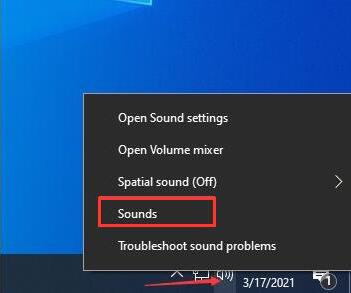
Step 1: Please right-click the Speaker icon at the bottom right of your PC taskbar > select Sounds.
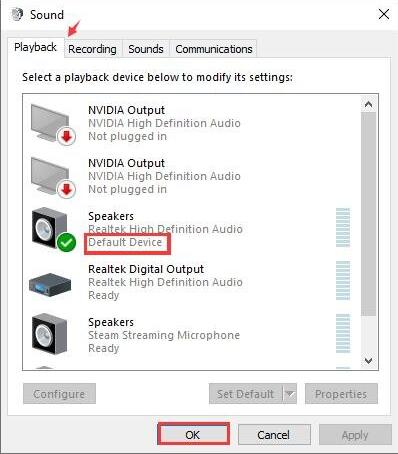
Step 2: On the pop-up window, click Playback > right-click the default Speaker > select Properties from the right-click menu.
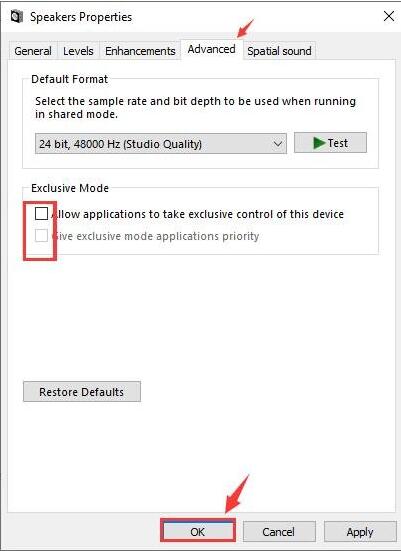
Step 3: On the pop-up Speaker Properties window, click Advanced > uncheck the two options: Allow applications to take exclusive control of this device and Give exclusive mode applications priority > click OK.
Step 4: Reboot your PC and see if the no sound issue is solved.
2)Fix the no sound issue from Microphone
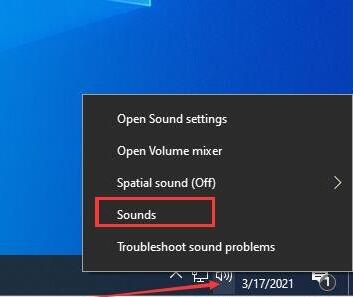
Step 1: Please right-click the Speaker icon at the bottom right of your PC taskbar > select Sounds.
Step 2: On the pop-up window, click Recording > right-click the default Microphone > select Properties from the right-click menu.
Step 3: On the pop-up Microphone Properties window, click Advanced > uncheck the two options: Allow applications to take exclusive control of this device and Give exclusive mode applications priority > click OK.
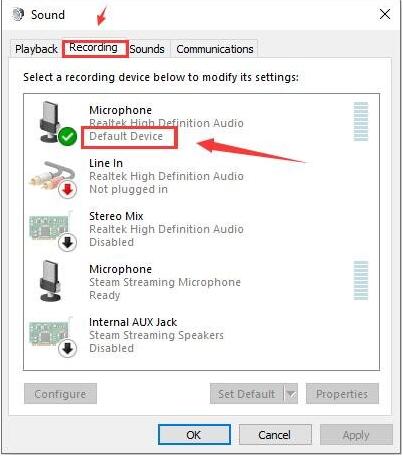
Step 4: Reboot your PC and see if the no sound issue is solved.
If the issue persists, please get online support here.